How to Reset Your Wyze Doorbell: A Simple Step-by-Step Guide
Having trouble with your Wyze doorbell and need to reset it? Whether you’re dealing with technical issues or want to start fresh, knowing how to reset your Wyze doorbell can help you feel more confident in managing your device.
In this guide, we’ll walk you through the step-by-step process to reset your Wyze doorbell and get it back up and running in no time.
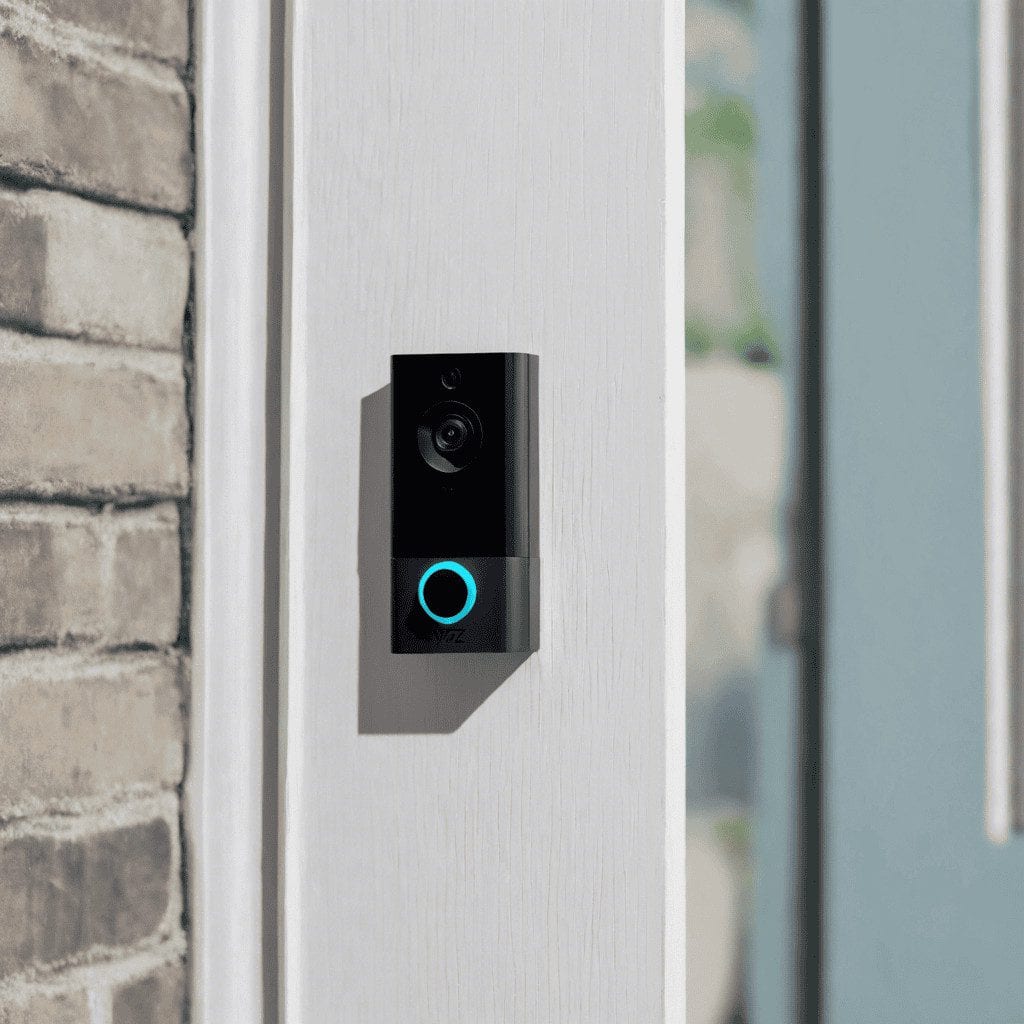
Knowing how to reset your Wyze doorbell is a helpful skill for maintaining and troubleshooting your smart Home device. By following the step-by-step guide outlined here, you can feel more assured in resolving issues effectively and safely.
Wyze Doorbell
Protecting your property and having an effective doorbell can be essential. With the advent of digital technology, the Wyze Doorbell stands out as an excellent choice for those seeking to enhance their Home security. With its advanced features and seamless integration, this intelligent doorbell is a must-have for any homeowner seeking to enhance their Home’s security.
What Makes the Wyze Doorbell Stand Out?
The Wyze Doorbell isn’t just an ordinary doorbell. It’s an effective tool created to help protect and secure your house. With motion and two-way audio sensors, plus a crisp 1080p HD camera, this innovative doorbell provides instant alerts and a crystal-clear view of your front door so that homeowners can watch their Home from anywhere. While at work, doing errands, or relaxing at Home, the Wyze Doorbell will ensure that you’re never far from the things that matter most.
Seamless Integration and User-Friendly Interface
One of the best features of this Wyze Doorbell is its seamless integration with the Wyze app. The intuitive interface makes it straightforward to change settings, send alerts, and even view videos in real time. The app also supports cloud storage for recorded videos, so you won’t miss a moment when you’re away from Home.
Beyond its compatibility with Wyze and the Wyze app, the doorbell can integrate seamlessly with other brands’ smart Home devices, letting you build a security solution tailored to your preferences.
Whether you’re already using Wyze devices or looking to expand your smart home system, the Wyze Doorbell syncs with different devices to deliver a seamless, consistent experience.
Enhanced Security Features for Peace of Mind
Wyze Doorbell prioritizes security without losing convenience. Its adjustable motion-detection zones allow you to fine-tune the dial to focus on specific areas, reducing false alarms and ensuring you are notified only when necessary. Plus, two-way audio lets you contact customers, delivery workers, and even potential intruders from your phone.
Its night vision features protect your house around the clock. No matter the time of day, the Wyze Doorbell delivers clear footage, giving you the security and peace of mind of having a security guard watching over your home.
Beautifully pleasing design and easy installation: Installation. Beyond its remarkable features, the Wyze Doorbell boasts a sleek, modern, and elegant design that blends into any exterior of your Home. Its compact, minimal look won’t detract from your home’s aesthetics, making it a hidden yet powerful entrance feature.
Installation is simple and quick so that you can set up your doorbell with confidence. With clear instructions and all necessary hardware, you’ll feel capable of completing the process without professional help.
The Wyze Doorbell is a game-changing gadget that is redefining Home security. Its advanced capabilities, seamless integration, and easy-to-use interface provide a complete solution for those looking to secure their homes.
You can use it to track deliveries, monitor your outdoor space, or enhance your Home’s security. The Wyze Doorbell is an ideal partner for enhanced security and peace of mind. Invest in the Wyze Doorbell now and enjoy a secure, connected Home.
How to Reset Your Wyze Doorbell: A Step-by-Step Guide
If your Wyze doorbell isn’t connecting properly or the video feed isn’t working, this guide will help you troubleshoot common issues and reset the device if needed to ensure reliable performance.
Understanding the Need to Reset Your Wyze Doorbell
Before you begin, understand that resetting your Wyze doorbell will erase custom settings and stored data. Common reasons to reset include troubleshooting connectivity issues, fixing software glitches, or preparing it for reinstallation. By following the reset process correctly, you can effectively address these issues and restore optimal performance.
Step 1: Prepare for the Reset
Before you begin, make sure you have access to the Wyze app on your smartphone or tablet. This will let you navigate the necessary settings and start the reset process easily. Also, make sure your Wyze doorbell is powered on and connected to your Wi-Fi network.
Step 2: Navigate to the Wyze Doorbell Settings
Open the Wyze app on your device and navigate to the “Devices” tab. Select your Wyze doorbell from the list of connected devices to access its settings.
Step 3: Initiate the Reset Process
Within the Wyze doorbell settings, look for the option to reset the device. This may be labeled as “Reset Device” or “Factory Reset.” Follow the on-screen prompts to confirm the reset action.
Step 4: Reconnect Your Wyze Doorbell
Once the reset is complete, reconnect your Wyze doorbell to your Wi-Fi network. Follow the instructions in the Wyze app to re-establish the connection and ensure your doorbell is ready to use.
Step 5: Test the Functionality
After resetting and reconnecting your Wyze doorbell, test its functionality to confirm the reset was successful. Verify that you can receive notifications, view the live feed, and access other features through the Wyze app.
How to Set Up a Wyze Doorbell
Looking to enhance your home security with a smart doorbell? The Wyze Doorbell is a fantastic choice, offering high-quality features at an affordable price.
In this comprehensive guide, we will walk you through the step-by-step process of setting up your Wyze Doorbell, ensuring you can enjoy its benefits quickly and easily. Let’s dive in!
Step 1: Unboxing Your Wyze Doorbell
When you receive your Wyze Doorbell, carefully unbox the contents. You should find the doorbell, mounting bracket, screws, wires, chime connector, and necessary installation tools.
Step 2: Preparing Your Doorbell Area
Before you begin, turn off the power to your existing doorbell at the circuit breaker. This crucial safety step prevents electrical mishaps during setup.
Step 3: Installing the Mounting Bracket
Using the provided screws and tools, install the mounting bracket in the chosen location for your Wyze Doorbell. Fasten it securely to the surface and level it for proper alignment.
Step 4: Wiring the Doorbell
Follow the included instructions to connect the wires from your existing doorbell to the Wyze Doorbell. If you don’t have an existing doorbell, the Wyze Doorbell also supports installation with a provided power adapter.
Step 5: Attach the Wyze Doorbell
Carefully attach the Wyze Doorbell to the mounting bracket, ensuring a snug fit. Double-check the alignment and make any necessary adjustments before proceeding.
Step 6: Connecting to the Wyze App
Download the Wyze App on your smartphone and create an account if you haven’t already. Follow the in-app instructions to add the Wyze Doorbell to your account and connect it to your Home Wi-Fi network.
Step 7: Testing and Customizing Settings
Once your Wyze Doorbell is connected, test its functionality to ensure everything works as expected. You can also customize settings, such as motion detection sensitivity and alert preferences, through the Wyze App.
Step 8: Optional Chime Connector Installation
If you want to utilize your existing mechanical chime with the Wyze Doorbell, follow the additional instructions to install the chime connector for seamless integration.
Step 9: Enjoying Your Wyze Doorbell
With setup complete, you can enjoy the convenience and security your Wyze Doorbell offers. Receive instant alerts, interact with visitors through two-way audio, and easily monitor your doorstep.
How to Pair Your Wyze Chime
Are you looking to enhance your Home security with the Wyze Chime? This innovative device works seamlessly with your Wyze Cam, providing real-time alerts and notifications.
In this guide, we’ll walk you through the simple process of pairing your Wyze Chime with your Wyze Cam, so you can enjoy added peace of mind and security at home.
Step 1: Understanding the Wyze Chime
Before we dive into the pairing process, let’s take a moment to understand what the Wyze Chime has to offer. The Wyze Chime is a wireless chime that connects to your Wyze Cam and provides audible alerts when it detects motion or sound. It’s a great addition to your Home security setup, as it ensures that you never miss an important notification, even if you’re not actively monitoring your camera feed.
Step 2: Getting Started
To begin pairing, make sure your Wyze Cam is set up and connected to your Wi-Fi network. You’ll also need to have the Wyze app installed on your smartphone or tablet. Once you have these prerequisites in place, you’re ready to start pairing your Wyze Chime.
Step 3: Pairing Your Wyze Chime
1. Open the Wyze app on your mobile device and navigate to the Devices tab
2. Select the Wyze Cam that you want to pair with the Wyze Chime
3. Tap on the Settings icon for the selected Wyze Cam
4. Scroll down and select “Add a Product.”
5. Choose “Wyze Chime” from the list of available products
6. Follow the on-screen instructions to complete the pairing process
Step 4: Testing the Connection
Once pairing is complete, test the connection between your Wyze Cam and the Wyze Chime. You can do this by triggering a motion or sound event in front of your Wyze Cam. If the pairing was successful, you should hear the Wyze Chime sound an alert within a few seconds of the event being detected.
Step 5: Customizing Your Settings
The Wyze app lets you customize your Wyze Chime settings, including volume and the types of alerts that trigger the chime. Take some time to explore these options and tailor them to your specific preferences and needs.
Pairing your Wyze Chime with your Wyze Cam is straightforward and can significantly enhance your home’s security and convenience. By following the steps in this guide, you can ensure you never miss a crucial notification and have greater peace of mind knowing your Home is protected. Get started today and experience the benefits of a seamlessly integrated Home security system with Wyze.
Power Cycling Your Wyze Doorbell
Power Cycling Your Wyze Doorbell: Troubleshooting Tips and Tricks. Are you experiencing issues with your Wyze Doorbell? Don’t worry, you’re not alone. Many users encounter occasional glitches with their smart doorbells, but most can be quickly resolved with a simple power cycle.
What is Power Cycling?
Power cycling, also known as a hard reset, involves turning off a device, unplugging it from the power source, waiting a short while, then plugging it back in and turning it on again. This process can clear temporary glitches and restore normal operation.
Why Power Cycle Your Wyze Doorbell?
If you’re experiencing issues such as the doorbell not responding to button presses, connectivity problems with the Wyze app, or other unexpected behavior, power cycling can often resolve them without advanced troubleshooting or technical support.
How to Power Cycle Your Wyze Doorbell
1. Locate the power supply for your Wyze Doorbell. This may involve removing the device from its mounting bracket to access the power connections
2. Turn off the power supply to the doorbell. This may involve switching off the circuit breaker or unplugging the transformer that provides power to the doorbell
3. Wait for at least 30 seconds to ensure that the doorbell fully powers down
4. After the waiting period, turn the power supply back on
5. Once the power is restored, wait for the Wyze Doorbell to boot up and reconnect to the Wyze app
6. Test the doorbell to see if the issues you were experiencing have been resolved
Troubleshooting Tips for Wyze Doorbell Issues
If power cycling doesn’t resolve your Wyze Doorbell issues, here are some additional troubleshooting tips to consider:
1. Check the Wi-Fi Signal Strength: A weak Wi-Fi signal can cause connectivity issues with your Wyze Doorbell. Consider relocating your router or using a Wi-Fi extender to improve signal strength near the doorbell.
2. Verify Power Supply: Ensure that the power supply to your doorbell is stable and within the recommended voltage range. Power fluctuations can cause performance issues.
3. Update Firmware and App: Regularly check for firmware updates for your Wyze Doorbell and ensure that you are using the latest version of the Wyze app. Updates can address known issues and improve overall performance.
4. Contact Wyze Support: If you’ve tried power cycling and troubleshooting steps without success, feel free to reach out to Wyze customer support for further assistance. They can provide advanced troubleshooting and arrange a replacement if they find the device is faulty.
Power cycling your Wyze Doorbell is a simple, effective way to address common issues and restore functionality. By following the steps in this blog post, you can troubleshoot and resolve many problems you may encounter with your smart doorbell.
(FAQs)
1. Why Should I Reset My Wyze Doorbell?
Resetting your Wyze Doorbell can help resolve a range of issues, including connectivity problems, software glitches, and unresponsiveness. It’s a common troubleshooting step that can often resolve issues without requiring further technical support.
2. How Do I Perform a Soft Reset on My Wyze Doorbell?
Performing a soft reset on your Wyze Doorbell is simple. Press and hold the doorbell’s setup button for at least 20 seconds. This will initiate the reset process, indicated by a flashing yellow light on the device. Once the light stops flashing, the reset is complete.
3. What Is the Process for Hard Resetting the Wyze Doorbell?
If a soft reset doesn’t resolve the issue, you may need a hard reset. To hard reset your Wyze Doorbell, locate the small reset button on the back of the device. Gently press and hold the reset button for at least 30 seconds. After you release the button, the doorbell will reboot, indicating the hard reset is complete.
4. Will Resetting My Wyze Doorbell Delete Any Settings or Data?
Resetting your Wyze Doorbell will restore it to its default settings, erasing any customizations or configurations you’ve made. This includes Wi-Fi settings, device names, and any stored video footage. Note your settings before resetting so you can easily reconfigure the device afterward.
5. What Should I Do After Resetting My Wyze Doorbell?
After resetting your Wyze Doorbell, you’ll need to set it up again as if it were new. This involves connecting it to your Wi-Fi network, configuring settings, and ensuring it’s linked to your Wyze account. Follow the setup instructions that came with your doorbell to complete the process.
6. When Should I Seek Further Assistance?
If resetting your Wyze Doorbell doesn’t resolve the issues you’re experiencing, or if you have trouble during the reset process, you may need further technical support. Contact Wyze customer support for guidance and troubleshooting assistance.
Conclusion
Resetting your Wyze doorbell doesn’t have to be daunting. By following these simple steps, you can troubleshoot issues and reset your device easily and effectively. Whether you’re addressing connectivity issues or preparing to reinstall your doorbell, a proper reset can help optimize its performance.
#WyzeDoorbell #TechTips #SmartHomeHacks #DoorbellReset #HomeAutomation #GadgetGuru #DIYHome #ResettingMadeEasy #HomeTech #SmartGadgets #DoorbellDilemmas #WyzeLife #HomeSecurity #TechSavvy #SmartHomeSetup #GadgetGoals #HomeImprovement #EasyFix #TechTalk #SmartLiving #HomeHacks #WyzeCommunity #ResetGuide #TechieTips #DoorbellDIY #GadgetNerd #SmartHomeLove #TechForEveryone #WyzeFam #HomeTechie