Do you know how to reset the MYQ Garage Door Opener Wifi? The MYQ Garage Door Opener is a smart garage door opener that connects to your Home’s Wi-Fi network, letting you control and monitor your garage door from anywhere using your smartphone or another mobile device.
With the MYQ app, you can remotely open and close your garage door, receive real-time notifications when the door opens or closes, and set alerts to notify you if the door has been left open for a specified period.
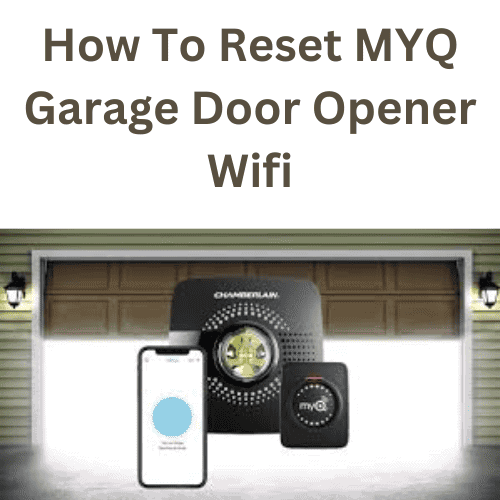
To set up the MYQ Garage Door Opener’s Wi-Fi connection, follow the instructions provided with the device or in the MYQ app.
Typically, you’ll connect the device to your Home’s Wi-Fi network using your smartphone or another mobile device, then pair the MYQ Garage Door Opener with the app.
Once connected, you can control and monitor your garage door from anywhere with an internet connection.
What is MYQ Garage Door Opener Wifi
MYQ Garage Door Opener WiFi is a smart garage door opener that lets you control your garage door from your smartphone or tablet.
It uses WiFi technology to connect your garage door opener to your Home network, letting you monitor and control your garage door from anywhere with the MYQ app.
With the MYQ Garage Door Opener WiFi, you can receive alerts on your smartphone or tablet when your garage door opens or closes, and check your garage door status at any time.
You can also use the app to open or close your garage door remotely, giving family members, friends, or service providers access even when you’re not home.
MYQ Garage Door Opener WiFi is compatible with most garage door openers manufactured after 1993 and is easy to install.
It offers convenience, security, and peace of mind for homeowners who want greater control over their garage doors.
How To Reset MYQ Garage Door Opener Wifi
To reset the Wi-Fi on your MYQ garage door opener, follow these steps:
1. Press and hold the Wi-Fi setup button located on the garage door opener for about 10 seconds until the LED light turns blue.
2. Once the LED light turns blue, release the Wi-Fi setup button and wait for about 30 seconds until the LED light turns off.
3. Press and hold the Wi-Fi setup button again until the LED light turns blue again, then release it.
4. After releasing the Wi-Fi setup button, the LED light will start flashing blue, indicating that the MYQ garage door opener is ready to connect to a new Wi-Fi network.
5. Use the MYQ app on your mobile device to reconnect the MYQ garage door opener to your Wi-Fi network. Open the MYQ app, select “Add a device,” and follow the on-screen instructions to connect your MYQ garage door opener to your Wi-Fi network.
If you have trouble reconnecting your MYQ garage door opener to your Wi-Fi network, reset your router and/or modem, then repeat the steps above.
How to Reset Your Liftmaster MyQ Garage Door Opener
To reset your Liftmaster MyQ Garage Door Opener, you can follow the steps below:
1. Locate the “Learn” button on your garage door opener motor unit. This button is typically located on the same side as the antenna wire.
2. Press and hold the “Learn” button for about 10 seconds, until the LED light on the motor unit turns off. This will erase all programmed remote controls and keyless entries from the garage door opener’s memory.
3. Release the “Learn” button, and then immediately press and hold it again. Hold the button until the LED light turns on again, which should take about 6 seconds.
4. Release the “Learn” button again, and then press and release the button on the remote control you want to program. The garage door opener’s LED light should flash to indicate that the remote control has been successfully programmed.
5. Repeat step 4 for each additional remote control or keyless entry you want to program.
6. Test each remote control and keyless entry to make sure they are working properly.
What Do the Colors on a MyQ Garage Door Opener Mean?
The colors on a MyQ garage door opener can indicate different states or operational modes. Here are some common color codes for MyQ garage door openers:
Solid Blue: The MyQ garage door opener is in pairing mode and ready to connect to your Home Wi-Fi network or MyQ account.
Slowly Blinking Blue: The MyQ garage door opener is connected to your Home Wi-Fi network or MyQ account.
Solid Green: The MyQ garage door opener is connected to your Home Wi-Fi network or MyQ account and is ready to use.
Slowly Blinking Green: The MyQ garage door opener is receiving a signal from your remote control or smartphone app.
Fast Blinking Green: The MyQ garage door opener is operating the garage door.
Solid Red: The MyQ garage door opener is experiencing an issue and requires attention. Check the manual or contact customer support for assistance.
Slowly Blinking Red: The MyQ garage door opener is updating its firmware.
Troubleshooting Issues with a MyQ Opener
If you are experiencing issues with your MyQ opener, here are some troubleshooting steps you can take:
Check the power source
Make sure that the opener is properly plugged in and receiving power. If it’s not, try plugging it into a different outlet or checking the circuit breaker.
Verify the Wi-Fi connection
Ensure that the opener is connected to your Wi-Fi network. If not, reset the Wi-Fi connection and reconfigure it.
Check the MyQ app
Make sure that you have the latest version of the MyQ app installed on your smartphone or tablet. If so, close and reopen the app, or log out and log back in.
Check the garage door sensors
Make sure that the sensors are properly aligned and not obstructed by any objects. If they are, adjust them accordingly.
Check the opener settings
Ensure the opener settings are configured correctly, including the travel limit, force settings, and safety features.
Reset the opener
If none of the above steps work, try resetting the opener to its factory settings. This will erase all settings and configurations, so reconfigure the opener afterward.
Contact customer support
If you’ve tried all the above steps and the issue persists, contact MyQ customer support for further assistance. They can help you troubleshoot the issue and provide you with a solution.
Maintain MyQ and Complete Troubleshooting
MyQ is a technology that allows you to control your garage door opener and other compatible devices using a smartphone or other internet-enabled device.
To maintain your MyQ, follow the manufacturer’s installation and use instructions. Also, regularly check for software updates and ensure your internet connection is stable and strong.
If you are experiencing issues with MyQ, here are some troubleshooting tips that may help:
Check your internet connection: Make sure that your internet connection is strong and stable. A weak internet connection may cause MyQ issues.
Restart your MyQ device: Unplug it from the power source, wait a few seconds, then plug it back in.
Check for software updates: Ensure that your MyQ device and the MyQ app are up to date with the latest software versions.
Reset your MyQ device: If the issue continues, you may need to reset it. Refer to the manufacturer’s instructions.
Contact customer support: If you have tried the steps above and still have issues with MyQ, you may need to contact customer support for further assistance.
Benefits of Resetting Your MyQ Garage Door Opener
Resetting your MyQ garage door opener can provide several benefits, including:
Improved security
Resetting your MyQ garage door opener can help ensure that only authorized individuals have access to your garage. This can help to prevent theft, break-ins, and other security issues.
Enhanced functionality
Resetting your MyQ garage door opener can sometimes resolve connectivity or performance issues. This can help ensure your garage door opener functions smoothly and reliably, and that you can use all its features.
Increased convenience
Resetting your MyQ garage door opener can make it easier to use, particularly if you have changed internet service providers or updated your Home network. By resetting your opener and reconfiguring it with your new network details, you can avoid connectivity issues and ensure that you can control your garage door from your phone or other devices.
Overall, resetting your MyQ garage door opener is a simple, effective way to maintain your garage door’s security and functionality while keeping it convenient to use.
What happens when you reset your MyQ Hub
Resetting your MyQ Hub erases all stored settings and configurations, returning it to its default settings. This means that any customization you have made, such as adding new devices or setting up schedules, will be lost.
To reset your MyQ Hub, press and hold the reset button for several seconds until the LED light starts blinking rapidly. Once the light starts blinking rapidly, you can release the reset button, and the device will begin the reset process.
After resetting the device, you will need to set it up again, which may include reconnecting to your Wi-Fi network and adding any devices or schedules that you previously had set up.
(FAQs)
Why would I need to reset my MYQ garage door opener wifi?
There are a few reasons you might need to reset your MYQ garage door opener wifi. Perhaps you’ve changed your Home network or router and need to reconnect your opener, or maybe you’re experiencing connectivity issues and need to start fresh.
How do I reset my MYQ garage door opener wifi?
To reset your MYQ garage door opener’s Wi-Fi, locate the “Learn” button on your opener. Press and hold this button for about 10 seconds until the LED light next to it turns off. This will erase all stored wifi settings. Then, follow the instructions in the MYQ app to reconnect your opener to wifi.
What if I can’t find the “Learn” button on my opener?
If you can’t find the “Learn” button on your MYQ garage door opener, refer to the owner’s manual or contact the manufacturer’s customer support for assistance.
What if I still can’t connect to wifi after resetting my MYQ garage door opener?
If you’re still experiencing connectivity issues after resetting your MYQ garage door opener, restart your Home router or contact your internet service provider for help. You can also contact MYQ customer support for additional troubleshooting steps.
Conclusion
Resetting your MYQ garage door opener WiFi connection may be necessary if you experience connectivity issues or have recently changed your home’s WiFi network settings. Here are the steps you can follow to reset your MYQ garage door opener’s WiFi connection:
Locate the “Learn” button on your MYQ garage door opener. It is usually located near the LED light on the opener. Press and hold the “Learn” button for approximately 10 seconds. The LED light on the opener will blink to indicate that the reset process has begun.
Release the “Learn” button once the LED light begins to blink rapidly. Wait for approximately 30 seconds for the reset process to complete. During this time, the LED light on the opener will continue to blink rapidly.
Once the reset process is complete, the LED light on the opener will stop blinking and remain lit. To reconnect your MYQ garage door opener to your home’s WiFi network, follow the instructions in your MYQ app or on the MYQ website.
#MYQ #GarageDoorOpener #WifiReset #HomeHacks #SmartHome #DIYTips #TechSavvy #HomeImprovement #GarageGoals #ResetYourDevice #SmartGarage #HomeAutomation #EasyFix #GarageLife #TechTroubleshooting #WifiConnection #HomeTech #GadgetGuide #SmartLiving #HomeSetup #HowTo #LifeHacks #GarageDIY #TechTips #HomeGadgets #WifiHelp #SmartHomeTips #GarageDoor #HomeEssentials #TechMadeEasy #HomeHacks101