Briefly Explain the Purpose of the Video and the Benefits of Using an Old Cell Phone as a Security Camera
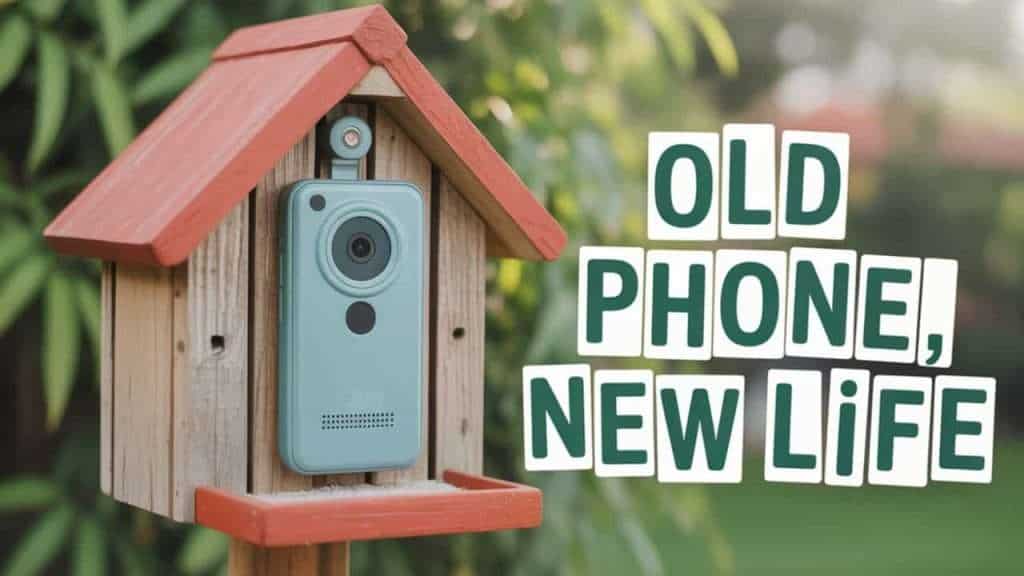
Turning an old cell phone into a security camera is an innovative and cost-effective way to enhance Home or office security without investing in expensive equipment. The purpose of this video and guide is to help viewers repurpose a device that might otherwise gather dust into a vigilant monitoring tool that delivers real-time video streaming and remote surveillance capabilities. Utilizing an old smartphone leverages its built-in camera, Wi-Fi connectivity, and processing power to provide a practical security solution that is accessible from anywhere.
The benefits of using an old cell phone as a security camera include significant cost savings, since no new hardware is required beyond optional mounts or chargers. It also allows for flexible camera placement—indoors or outdoors—depending on the phone’s waterproofing and durability. With the proliferation of intuitive security apps, users can access features such as motion detection, night vision, cloud storage, and alerts directly on their devices, whether a phone or a computer.
Repurposing an old smartphone reduces electronic waste and promotes sustainability by extending the device’s useful life. This accessible approach democratises security monitoring for those seeking affordable, customizable surveillance systems.
This content will walk through the entire process, from gathering equipment to setup and use, ensuring viewers can confidently convert their unused phones into effective security cameras. For detailed app options and setup tutorials, refer to resources such as the AlfredCamera official site and security DIY blogs (source).
How to Use Old Cell Phone as Security Camera
Using an old cell phone as a security camera starts with preparing the device and installing a reliable security camera app that supports remote viewing and motion alerts.
The first step involves choosing a suitable smartphone, not necessarily the newest model, but one with a functional camera, adequate battery life, and uninterrupted Wi-Fi connectivity. Resetting the phone to factory settings is often recommended to clear personal data and optimize performance for continuous operation.
Next, the phone must be connected to a reliable power source to ensure continuous monitoring without interruptions from battery drainage. This might require a long charging cable or a secure charging station at the monitoring location.
The choice of app is pivotal; popular apps such as Alfred, Manything, and Presence offer easy setup, cross-platform compatibility, and features tailored to surveillance needs.
After installing and configuring the app on both the old phone (camera device) and your current smartphone or computer (viewer device), place the camera phone strategically.
Ideal placement covers entry points or critical areas with clear, unobstructed views and should allow for connection to Wi-Fi and power. Stabilize the phone with a stand or mount.
Finally, test the live feed and adjust app settings for motion sensitivity, recording schedules, and notifications. The ability to monitor remotely and receive alerts enhances security awareness, making an old phone a versatile and effective surveillance device. This process offers an impressive DIY security alternative for budget-conscious users or those wanting scalable multi-camera setups.
Gathering Necessary Equipment: List What You’ll Need—An Old Smartphone, a Charger, and a Stable Internet Connection
Old Smartphone: The key piece of equipment is any unused phone with a working camera and Wi-Fi connectivity. It does not have to be a high-end model; even older devices with basic cameras work well when positioned correctly. Ensure the phone can hold a charge long enough or be connected to a power source continuously to avoid downtime.
Charger and Power Supply: Continuous power is crucial to prevent the phone from running out of battery during extended surveillance periods. A charger with a long cable or an extension cord is essential for flexible phone placement. Consider using a phone stand or holder that keeps the charger securely in place while avoiding cable strain.
Stable Internet Connection: To monitor footage remotely or receive alerts, the phone must maintain a reliable Wi-Fi connection. If Wi-Fi is spotty, consider repositioning the router or using Wi-Fi extenders to improve coverage at the camera location.
Mounting Equipment (Optional): A tripod, phone mount, adhesive hooks, or dedicated security camera stands can help secure the phone and provide optimal viewing angles. Stability prevents accidental bumps or movement that would disrupt video capture.
Secondary Device: A current phone, tablet, or computer will serve as the viewer device to access live streams, recordings, and alerts through the chosen security camera app.
Gathering these essentials in advance simplifies setup and improves surveillance performance, as inadequate power or Wi-Fi can cause dropped footage or connection loss. Planning ensures the repurposed phone operates effectively as a security camera.
Choosing the Right App: Suggest a Few Popular Security Camera Apps That Are Compatible With Old Phones, Emphasizing Features to Look For
| App Name | Platform | Key Features | Pros | Cons | Ideal Use Case |
|---|---|---|---|---|---|
| Alfred Camera | Android, iOS | Live video streaming, motion detection, two-way audio, cloud/local storage, instant alerts | Free basic plan, simple interface, cross-platform compatibility, unlimited device support | Limited features in the free tier and ads in the free version | Users seeking an easy setup with robust remote monitoring |
| Manything | Android, iOS | Motion-triggered recording, cloud storage, notifications, live streaming | Supports multiple cameras, customizable motion zones | Limited free storage, subscription needed for cloud backup | Home users prioritizing motion alerts and cloud access |
| Presence | Android, iOS | Advanced features require a Premium subscription | Good integration with smart devices, easy to use | Users seeking an easy setup with robust remote monitoring | Users wanting smart home compatibility |
| AtHome Camera | Android, iOS | Scheduling, remote monitoring, cloud backup, multi-view functionality | Supports multiple platforms, real-time alerts | Setup may be complex for beginners | Multi-camera systems for larger area coverage |
| WardenCam | Android, iOS | Motion detection, cloud backup, night vision support, time-lapse | Easy cloud integration, supports multiple devices | Limited free tier features | Users looking for night vision and easy cloud access |
| IP Webcam | Android | Motion detection, smart home integration, push notifications, and video clip storage | No subscription fees, extensive customization | Converts phone into an IP camera, video streaming via web browser, supports on-premises storage | Tech-savvy users wanting local network streaming |
When selecting an app for your old phone, consider its compatibility with your phone’s operating system, key features such as motion detection and cloud storage, ease of use, and whether you require two-way audio or advanced alert systems.
Free versions are often sufficient for basic monitoring, with paid upgrades unlocking enhanced capabilities. Popular apps like Alfred Camera are widely recommended for their balance of functionality and simplicity.
Setting Up the Phone: Guide on How to Reset the Phone, If Necessary, and Prepare It for Its New Role as a Security Camera
Back up any important data on your old phone, then perform a factory reset to remove residual files, apps, and personal information. This step optimizes performance by freeing up storage and eliminating potential security concerns.
After the reset, update the phone’s operating system and apps to the latest versions supported to ensure compatibility and security. Disable automatic screen lock or set it to remain awake when charging, so the screen doesn’t turn off during monitoring.
Turn off unnecessary notifications and background apps to prevent battery drain and interruptions. Adjust the settings to keep the phone connected to Wi-Fi continuously and prevent it from entering sleep mode, which can disrupt the camera feed.
Download and install the selected security camera app, and sign in to the same account on both the old phone and your current viewing device to enable syncing. Configure the app’s camera settings: set video resolution, enable motion detection, and customize alert preferences.
Finally, connect the phone to a stable power source, ideally leaving it plugged in during operation to ensure uninterrupted monitoring.
Mounting the Phone: Give Tips on Where and How to Position the Phone for Optimal Coverage
Choose a location that provides a clear, unobstructed view of the desired surveillance area, such as entrances, hallways, or strategic interior spaces. Mount the phone at a height that captures detailed activity without blind spots.
Use sturdy mounts, tripods, or brackets to secure the phone. Avoid placing the phone on unsecured surfaces where it may fall or shift, as this can cause unstable footage.
Orient the camera lens away from direct sunlight or bright indoor lights to minimize glare and reflection. Position the phone to cover entry points and vulnerable areas while remaining discreet enough to avoid detection or tampering.
Ensure the mounting location is within Wi-Fi range and near a power outlet or charging source to ensure stable connectivity and uninterrupted power. Concealing cables and using extension cords can improve aesthetics and safety.
Consider placing multiple phones in different key locations for comprehensive coverage.
Connecting to Wi-Fi: Explain How to Connect the Old Phone to Your Wi-Fi Network for Remote Monitoring
Unlock your old phone, open the Settings app, and navigate to Wi-Fi. Ensure Wi-Fi is enabled, then scan for available networks.
Select your Home or office Wi-Fi network from the list. Enter the network password accurately and confirm the connection. Verify that the phone obtains an IP address by checking connection details.
To maintain reliable surveillance, disable any battery-saving modes or Wi-Fi sleep policies that may cause the phone to disconnect intermittently. Disable auto-switching to mobile data if applicable to avoid data overuse.
Test the internet speed and strength at the phone’s location to ensure adequate bandwidth. If connectivity is weak, consider moving the router closer, installing Wi-Fi extenders, or using a wired connection if the phone supports it.
After confirming Wi-Fi connectivity, launch the security camera app to complete the setup and test remote access features.
Testing the Camera: Walk Through Checking Video Quality and Ensuring That the App Works Correctly for Live Streaming
Open the camera app on the old phone to access the live view feed. Check the video clarity, frame rate, and color accuracy to ensure the camera records suitable quality footage.
On your viewing device (new smartphone, tablet, or PC), open the app and verify you can connect remotely with minimal lag. Test streaming in different lighting conditions to ensure consistent performance.
Adjust app settings if the image is blurry or poorly lit; increase resolution or enable night vision features as needed. Confirm that audio, if supported, is transmitting correctly.
Perform motion detection tests by moving within the camera’s field of view to ensure alerts and recordings trigger properly.
Test the setup multiple times to verify stability and responsiveness before finalizing it.
Setting Up Alerts: Describe How to Enable Motion Detection and Set Up Alerts for Any Suspicious Activity
In the security camera app’s settings, locate the motion detection section and enable it. Customize motion sensitivity to minimize false alarms triggered by small movements or pets, while still detecting relevant activity.
Define motion zones if the app supports it, focusing monitoring on critical areas and ignoring non-essential regions (e.g., busy streets or windows).
Enable push notifications or email alerts so you receive immediate updates on detected movements. Set quiet hours or alert schedules to avoid disturbances during specific periods.
Test the alert functionality by triggering motion events and verifying that you receive the alert on your phone. Adjust thresholds and alert types (sound, vibration) to suit your preferences.
Use cloud storage or on-device recording to save suspicious footage for later review and evidence.
(FAQs)
Q1: Can any old phone be used as a security camera?
A: Most smartphones with a functional camera and Wi-Fi capability can work, though performance depends on camera quality and battery life.
Q2: Do I need two phones to set up this system?
A: Usually, yes, one phone acts as the camera and the other as the viewer for remote monitoring.
Q3: How do I keep the phone running all day?
A: Connect it to a power source and disable sleep mode or screen timeout in settings.
Q4: Are there privacy risks in using old phones as cameras?
A: Use secure apps, change default passwords, and keep software updated to reduce risks.
Q5: Can I use multiple old phones as security cameras within a single app?
A: Many apps support multiple cameras, allowing comprehensive coverage.
Final Words
Repurposing an old cell phone as a security camera presents an affordable, Eco-friendly, and efficient way to monitor your Home or office. By leveraging the device’s built-in camera, Wi-Fi connectivity, and versatile app ecosystems, users gain remote access to real-time video, motion alerts, and recorded footage with minimal investment.
Following this comprehensive guide—from gathering equipment and choosing the right app to preparing and mounting the phone, connecting to Wi-Fi, testing, and setting up alerts—ensures that even those new to DIY surveillance can quickly and confidently set up an effective security system. This approach turns outdated technology into a valuable security asset, safeguarding your property with modern convenience.
#OldPhoneSecurityCamera #DIYSecurity #HomeSurveillance #SecurityCameraApps #RemoteMonitoring #MotionDetection #SecurityCameraSetup #RepurposeOldPhone #SmartHomeSecurity #AffordableSecurity